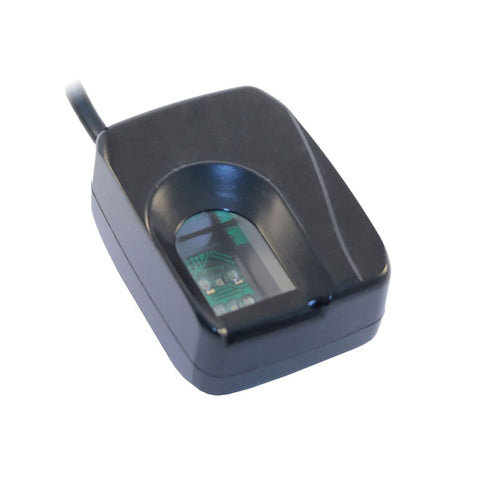
Futronic FS82 USB 2.0
The Futronic FS82 Fingerprint Smart Reader combines Futronic's
FS80
USB2.0 Fingerprint Scanner and an ISO7816 smart card
reader into one device.
The FS82 has exactly all features of FS80. It can be used as purely
fingerprint scanner with all Futronic's standard software. The smart
card reader in FS82 can handle any ISO7816 compatible smart card and
can also be used as a standalone smart card reader.
Fingerprint scanner and smart card reader can be combined to do
two-factor authentication. Registered fingerprint is can be stored on
smart card (carried by user) which is read into PC to match with a
freshly captured fingerprint from fingerprint scanner at the time of
authentication.
FS82 USB 2.0 Technical Specifications
| Scanner
Name |
FS82 USB 2.0
Fingerprint Smart Card Reader |
| Manufacturer |
Futronic Technology Co. Ltd. |
| Connection |
USB 2.0 |
| Manufacturer
Supported OS |
Microsoft Windows (32bit and
64bit), Linux (32bit), Mac OS X (x86 only)
|
| Neurotechnology
Supported
OS
(1) |
Microsoft Windows (32bit and
64bit), Linux (32bit), Mac OS X (x86 only) |
| Resolution |
500 dpi |
Fingerprint
Capture
Method
|
Touch
|
| Image capture
area (Platen size) |
16 x 24 mm (0.6" x 0.9") |
| Fingerprint image
size |
320 x 480 pixels |
| Sensor type |
Optical, CMOS |
| Illumination |
Infrared LEDs |
| Device size |
50 x 73 x 35 mm (2.0" x 2.9" x 1.4") |
| Device weight |
160 grams (0.4 lbs) |
| Operating
temperature |
-10°C ~ +55°C |
(1) These operating systems are supported by Neurotechnology
SDKs.
Back
to
the top of this page
Electrical characteristics
- Light source: Infrared LED
- Supports 5V, 3V and 1.8V smart cards
- Supply 60 mA to the smart card
Specification-Smart card reader
- Compliant with ISO 7816 and EMV 2000
- High speed smart card interface, up to 119 Kbps if it is
supported by card
- Supports 5V, 3V and 1.8V smart cards
- Supply 60 mA to the smart card
- Detect smart card type automatically
- 8 pin handling (C4/C8 supported)
- Secure Pin Entry (SPE)
- Two colors LED for smart card reader status indication
Product Compatibility
The Futronic FS80 USB 2.0 Reader is compatible with many different
software
development kits and applications. Below is the list of products
that are currently known to support this scanner. Please note
that some applications and development kits require specific versions
of the drivers to be installed. Please contact us if you need
additional information.
Supported Software Development Kits:
VeriFinger Standard and Extended SDK
MegaMatcher Standard and Extended SDK
Supported Applications:
FbF
(TM) Device Listener
Back to the top of this page
Live Finger Detection
Live Finger Detection(LFD) is a patent pending technology developed
by Futronic to stop the access to secured data and location by using
fake fingers made from silicone, rubber, play-doh, etc.
Futronic uses active sensing technology to detect live human finger.
In Futronic optical fingerprint scanner, a special signal is emitted to
the finger to be authenticated. This signal goes beyond the human skin
and then returns to sensor inside the scanner. The returned signal of a
live human finger is unique compared to that from any other material.
Futronic has developed an algorithm to differentiate the returned
signal of live human finger from that of all other material. As a
result, Futronic optical fingerprint scanner only captures the
fingerprint of live fingers and rejects all other material that puts on
it. Fake fingers made from silicone, rubber, play-doh, etc, cannot be
used to get access through Futronic optical fingerprint scanner.
To make the LFD working properly, users need to put the finger on
scanner more carefully and accurately. It is because the finger must
touch a special location on the fingerprint scanner for the LFD signal
and sensor to work on. The following pictures illustrate how to put
finger on scanner for the LFD to work properly.
If a finger is not put on scanner accurately according to the above
pictures, it may be rejected because it cannot be detected by the
scanner as a live human finger. When this happens, please take away
finger and try to put finger again. After several trials, it is easy to
get used to it.
Some users may feel that it is quite inconvenient to use LFD
function. But it is worthwhile to sacrifice convenience a bit for
enhanced security. Moreover, the FLD function can be de-activated in
all Futronic products for applications that enhanced security against
fake fingers is not necessary.
Back to the top of this page